Model report8 min read
Seedream 5.5 Guide: How to Use, Layer Split & Image Edits
Explore Seedream 5.5 on Yihook. Learn how to split image layers, create transparent PNGs, edit with optional markups, and compare with 5.0 in this review.

In commercial design and visual asset production, creative workflows rarely conclude with a single text-to-image prompt. Production teams frequently need to reference multiple brand items, refine localized areas without disrupting overall composition, or break finished marketing collateral down into isolated transparent elements for downstream layout. Seedream 5.5 is ByteDance’s image generation and editing model for these tasks. Yihook now integrates the model across its main generation interface, creative canvas, and MCP developer tools. This review and practical guide covers Seedream 5.5 features, real-world workflows, copyable prompt templates, model comparisons, and credit pricing.
What Has Changed Compared to Seedream 5.0 Pro?
The table compares the options currently available on Yihook for Seedream 5.0 Pro and 5.5:
| Capability | Seedream 5.0 Pro on Yihook | Seedream 5.5 on Yihook | Workflow Impact |
|---|---|---|---|
| Transparent Background | No transparent-background setting | Alpha channel output (RGBA PNG) | Generate transparent product assets and stickers |
| Regional Image Editing | Reference-image editing; no Annotation Edit integration | Optional markups in Annotation Edit, or text-guided adjustments | Mark the target or describe the change in words |
| Design Asset Decomposition | No layer-separation entry | Base image and transparent PNG layers, with optional OCR text | Extract reusable assets and copy recognized text |
| Multi-Image Referencing | Up to 10 reference images | Up to 10 reference images | Assign references to product shape, material, and scene |
| Resolution & Aspect Ratios | 1K/1.5K/2K, default 2K; 8 fixed ratios plus smart ratio and custom dimensions | 1K/1.5K/2K, default 2K; 10 fixed ratios | 5.5 adds 2:1 and 1:2 fixed ratios; select a format for your placement |
Commercial Image Generation: 10 Aspect Ratios and Multi-Reference Fusion
10 Commercial Aspect Ratios with 2K Default Fidelity
Commercial assets span diverse screen formats, from wide desktop banners to mobile stories. Seedream 5.5 supports 10 fixed aspect ratios (1:1, 4:3, 3:4, 16:9, 9:16, 3:2, 2:3, 21:9, 2:1, 1:2) with three resolution tiers (1K, 1.5K, and 2K), delivering PNG files with a 2K default resolution.

How to Use (Practical Workflow):
- Select Seedream 5.5 in the Yihook generation workspace or creative canvas node.
- Choose an aspect ratio tailored to your distribution channel (1:1 for social grids, 16:9 or 21:9 for web hero banners, 9:16 or 3:4 for vertical mobile layouts).
- Keep the default 2K resolution for production assets, or switch to 1K for draft exploration.
- Structure your prompt around: subject identity + surface material + ambient lighting + photographic style.
Prompt Template (Commercial Product Photography):
Minimalist modern architectural space, centered on [product subject, e.g., a luxury skincare glass bottle serum with gold dropper].
Natural morning window light diffusing from the side, clean surface reflections, soft contact shadows, light neutral microcement wall backdrop.
Commercial still-life photography, balanced editorial framing, sharp focus, pristine materials without visual noise.
Multi-Reference Fusion Guided by up to 10 Reference Images
When establishing visual identity for a catalog product, a single photo cannot convey 3D contour, finish texture, and target environment simultaneously. Seedream 5.5 allows submitting up to 10 reference images (JPEG, PNG, or WebP, up to 29 MiB each).
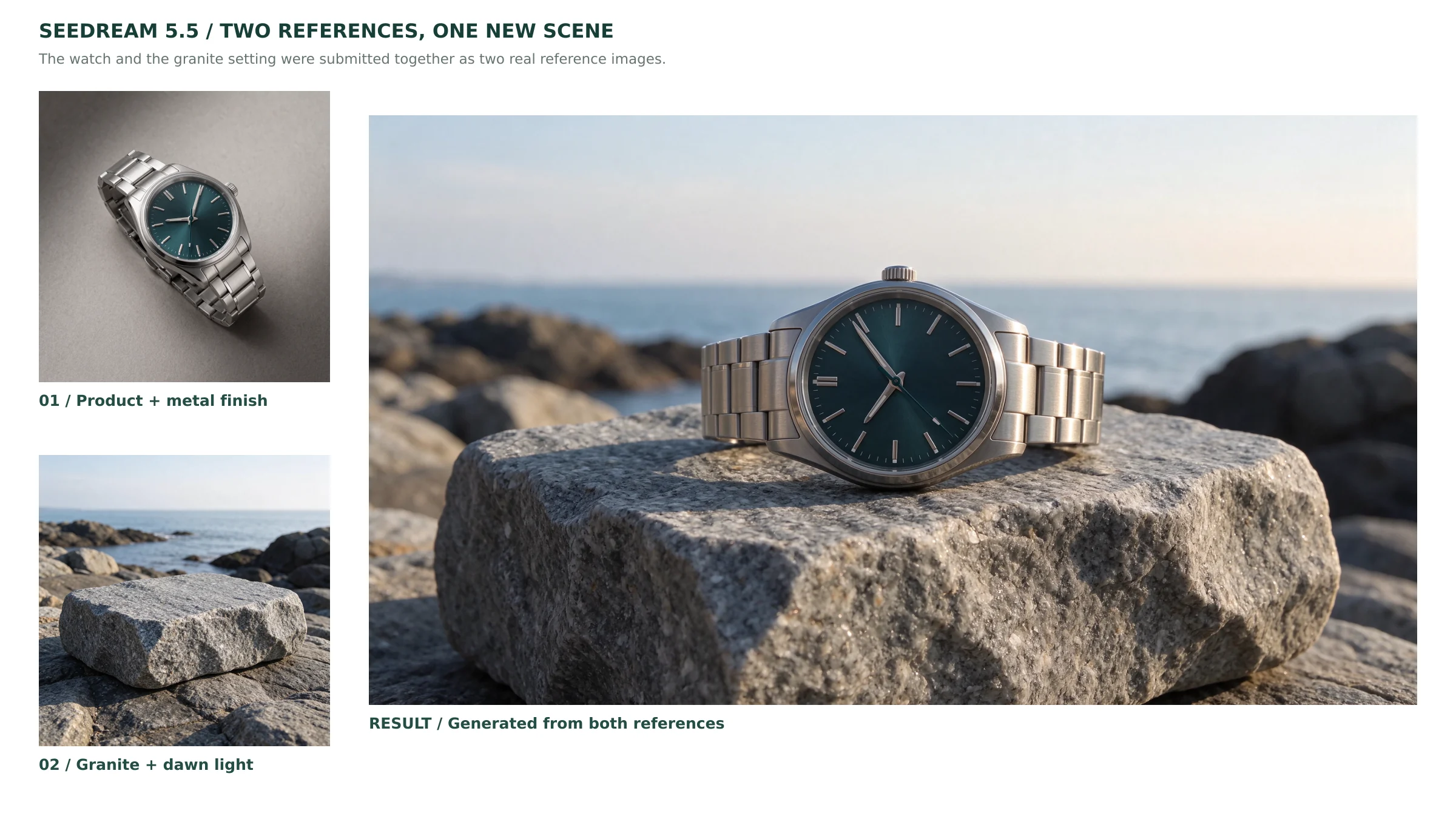
How to Use (Reference Role Assignment): Assign a clear operational role to each reference image to avoid prompt ambiguity:
- Reference 1: Supplies core product geometry and contours.
- Reference 2: Supplies tactile surface texture (e.g., brushed titanium or matte leather).
- Reference 3: Supplies environmental tone, color palette, and light angle.
Prompt Template (Product and Environment Integration):
Reference 1 provides the primary product [e.g., a precision mechanical chronograph watch]. Reference 2 provides the environmental surface [e.g., a dark textured granite block illuminated by crisp dawn light].
Place the watch from Reference 1 naturally atop the granite pedestal from Reference 2, preserving the watch bezel markers, polished hands, and brushed metallic sheen.
Directional morning sunlight casts realistic contact shadows and subtle specular highlights across the stone, matching high-end editorial catalog standards.
Native Transparent Background: Generating Cutout-Free PNGs
For ecommerce white-background catalogs, UI icon packs, and layout stickers, standard AI images typically generate opaque backdrops. Secondary background removal often degrades delicate edges, hair strands, or translucent glass. Seedream 5.5 supports PNG output with an Alpha channel.

Common Use Cases:
- Isolated ecommerce merchandise cutouts ready for multi-channel listings.
- UI badges, vector-style stickers, and decorative graphic assets.
- Standalone elements for rapid drag-and-drop layering on the creative canvas.
How to Use:
- Toggle the background parameter from Automatic (auto) to Transparent (transparent) in the settings panel.
- Output format remains locked to PNG.
- Generating transparent assets incurs no extra credit surcharge; pricing matches the standard resolution tier.
Prompt Template (Transparent Asset Generation):
[Product description, e.g., an artisanal dark brown leather saddle bag with brass buckles and tailored stitching].
Frontal straight-on studio angle, even softbox illumination, well-defined clean contours, strong volumetric form.
Background is completely transparent (Alpha channel), crisp boundary isolation with zero edge color fringing or background artifacts.
AI Image Editing: Optional Markups and Text-Guided Adjustments
Refining specific details without altering the rest of a successful render is critical in commercial workflows. The Annotation Edit tool on Yihook supports Seedream 5.5 with optional annotations: you can choose between bounding markups or pure text instructions.

Choosing Between Bounding Markups and Text-Only Edits
- Bounding Box Markups: Best when the image contains multiple similar items and you need to isolate one specific target (e.g., editing only the left vase among three arranged together). Draw a box around the target region and state the change; the edit instructions ask the model to remove the markup and restore the covered area. Check the result for stray marks and unintended changes.
- Pure Text Instructions: Best when the subject is visually distinct or when making coordinated adjustments to overall color or material finishes. Submit your text instructions directly without drawing markups.
Editing Rates
Editing tasks are billed as a single reference image (the resolution base price plus one reference surcharge): 3 credits for 1K/1.5K output, and 5 credits for 2K output. Drawn annotations carry no separate fee.
Practical Prompt Templates
Local Color & Finish Modification (Markup or Text-Only):
Change the color of [target subject, e.g., the ceramic coffee mug in the center] to [target color, e.g., deep cobalt blue].
Preserve the ceramic glaze texture, specular highlights, and natural shadow placement.
Keep the tabletop surface, surrounding items, typography, and overall composition completely unchanged. Ensure no markup lines appear in the output.
Local Object Replacement (Recommended with Bounding Box):
Replace the [original object, e.g., transparent glass vase] inside the bounding box with [new object, e.g., a matte dark green ceramic jar].
Match the exact lighting angle, intensity, and cast shadows of the original vase.
Keep all surrounding elements, background texture, and unselected areas identical. Deliver a clean final image with no bounding box outlines.
Layer Decomposition: Splitting Posters into Reusable Design Assets
Marketing collateral typically combines background plates, hero merchandise, graphic accents, and marketing typography. Reusing these components previously required tracking down original project files. Seedream 5.5 introduces Layer Decomposition (拆分素材) on Yihook, allowing creators to split an existing image from generation history, the asset library, or a canvas node into separated layers.

Workflow: From a Poster to Individual Assets
- Find the poster on the generation page and click the Layer Decomposition icon in its card toolbar. Check the source image, choose whether to enable OCR, and click Start. The task reserves 11 credits.

- While the task runs, the source image shows a scan animation and loading indicator. Closing the dialog does not cancel the task; reopen the same source entry to see its results.

- Review the base image and transparent layers in the checkerboard grid. Select the assets to download as PNGs or save to your asset library. This retro poster produced one base image and four transparent layers; inspect the separation boundaries and any residual foreground details before reuse.

- On the creative canvas, select the poster node and confirm decomposition. The dialog closes and the source node shows progress. When the task completes, all delivered layers appear in a vertical column to its right, connected to the source without another generation request.

Real-World Testing and Workflow
In a recorded canvas test, we submitted a minimalist modern home poster for layer decomposition at 1K resolution. The model delivered five assets:
- Background Plate (z_index: 0): One background image was delivered. Inspect it for residual foreground elements before reuse.
- Four Transparent Layers (z_index: 1–4): The returned layers contained the title and subtitle together, blurred foreground olive branches, a stone display pedestal, and a blue vase with branches and an egg. These are generated assets, not guaranteed one-object-per-layer cutouts.
- OCR and Text Copying: The text layer returned
QUIET\nFORM\nObjects for slower living. Clicking "Copy Text" displayed a copy-success message. OCR is optional and may return no text; verify the wording before reuse. - Canvas Integration: Placing two selected layers on the canvas added two independent image nodes without another generation request. This does not recreate an editable layered poster.
Recommended and Unsuitable Source Images
- Ideal Source Images:
- Commercial promotional posters, flyers, and event key visuals.
- Ecommerce product cards with clear foreground/background separation.
- Graphic layouts with prominent headline typography and geometric badges.
- Unsuitable Source Images:
- Densely entangled outdoor photography (e.g., complex overlapping tree branches in a forest).
- Compositions with heavy translucent glass refraction overlapping complex backdrops.
- Tasks requiring vector bezier curves or PSD vector paths (the system delivers raster transparent PNGs and plain OCR text, not layered vector PSD files).
Model Comparison: Seedream 5.5 vs GPT Image 2.6 vs Nano Banana 2.1
This comparison lists current Yihook features and suggested uses, rather than a measured image-quality ranking:
| Metric / Feature | Seedream 5.5 | GPT Image 2.6 | Nano Banana 2.1 |
|---|---|---|---|
| Suggested Tasks | Layer separation, transparent assets, and multi-reference images | Annotation editing, GIF generation, and text-to-SVG | 4K images and multi-reference compositions |
| Resolution Tiers | 1K/1.5K/2K, default 2K | 1K/2K/4K, default 2K; above 2560×1440 pixels is experimental | 1K/2K/4K, default 2K |
| Aspect Ratios | 10 fixed ratios | 15 fixed ratios | 14 fixed ratios plus smart ratio |
| Transparent Background on Yihook | Supported (RGBA PNG, no extra fee) | Supported | No transparency setting |
| Regional Editing | Optional markups or text instructions | Markup required in Annotation Edit; reference-image editing also available | Text instructions with reference images |
| Other Features | Layer decomposition (up to 5 images including the base) + optional OCR | GIF (Beta) and SVG, both text-only; one SVG per request | 4K output and additional wide/tall ratios |
| Max References | Up to 10 images (≤ 29 MiB each) | Up to 16 images | Up to 10 images |
| Workflow Examples | Poster assets and transparent product images | Social GIFs, text-generated vector icons, and annotation edits | 4K web visuals and wide or tall compositions |
Selection Guidance:
- Choose Seedream 5.5 when you need to split an existing poster into isolated layers, or need clean transparent PNG cutouts for ecommerce listings.
- Choose GPT Image 2.6 when you need to generate animated looping GIFs or generate SVG graphics from text. GIF and SVG modes do not accept reference images.
- Choose Nano Banana 2.1 when your output demands 4K images or additional wide and tall aspect ratios.
Yihook Credits and Layer-Delivery Refunds
The following prices apply to the Yihook main site. A quote is displayed before submission:
| Workflow | Configuration | Billing Method | Credit Cost |
|---|---|---|---|
| Standard Generation | 1K resolution | 1K base resolution: 2 credits per image | 2 credits / image |
| 1.5K resolution | 1.5K base resolution: 2 credits per image | 2 credits / image | |
| 2K resolution | 2K base resolution: 4 credits per image | 4 credits / image | |
| Reference surcharge | 0 to 10 images (Reference images: 1 credit per image) | +1 credit / reference image | |
| Transparent background | Available across all resolutions | No extra fee | |
| Annotation Editing | 1K / 1.5K resolution | Billed as single reference image | 3 credits / edit |
| 2K resolution | Billed as single reference image | 5 credits / edit | |
| Layer Decomposition | Fixed 1K resolution | Tasks pre-authorize 11 credits | Reserves 11 credits |
| Final settlement formula | k = successfully delivered images, including any base plate | Billed at 1 + 2 × k credits |
|
| Automated refund | Delivered count under 5 images | Excess 2 × (5 - k) refunded automatically |
Settlement Details: Layer decomposition tasks pre-authorize 11 credits upon submission (covering 1 input fee plus up to 5 delivered images). Once the task completes, the system bills strictly for the actual number of delivered images (k), and automatically refunds any unconsumed credits to your account. For example, a recorded task delivered 1 base image and 2 transparent layers (k = 3): its charge follows
1 + 2 × 3, with2 × (5 - 3)credits returned. If a task fails or yields no valid transparent assets, all reserved credits are refunded in full.
How to Use Seedream 5.5 with MCP
In supported MCP clients, you can generate images, edit with text instructions, and split images into layers:
- In supported MCP clients, call the
generate_imagetool specifyingmodel_id: "doubao-seedream-5.5". - Seedream 5.5 in MCP supports pure text-guided edits without requiring markup files.
- For layer separation, first call
preview_imagewithmodel_id: "doubao-seedream-5.5",reference_image_urls: ["<registered Yihook image HTTPS URL>"],layer_decomposition: true,resolution: "1K", andlayer_decomposition_options: { max_images: 5, text_recognition: true }. Omitprompt,aspect_ratio, andbackground. After reviewing the quote, callgenerate_imagewith the returned parameters,price_version, and arequest_id; query the returnedjob_idwithget_image_task.
Frequently Asked Questions (FAQ)
What is the primary difference between Seedream 5.5 and 5.0 Pro?
On Yihook, 5.5 adds a transparent-background option, layer separation with optional OCR, and optional markups in Annotation Edit. Both 5.0 Pro and 5.5 accept up to 10 reference images and offer 1K/1.5K/2K tiers. This compares Yihook features, not every capability offered elsewhere.
What kinds of images are best suited for layer decomposition?
Commercial posters, ecommerce cards, and images with clear foreground/background separation are useful starting points. Test a sample first when branches or translucent objects overlap: layers can contain combined elements or background remnants. Output consists of raster images and optional text, rather than an editable PSD.
How should I decide between bounding box markups and text-only editing?
When an image contains several identical or similar objects, use bounding box markups to help identify the designated item. When the subject is visually distinct or you wish to adjust lighting, color tones, or surface finishes across a component, submit pure text instructions.
Does generating transparent PNG assets cost extra credits?
No. Transparent background output is a native rendering toggle that costs the same as standard opaque image generation across 1K, 1.5K, and 2K resolution tiers.
How is layer decomposition billed and settled?
Tasks pre-authorize 11 credits upon submission (input fee of 1 credit plus 5 maximum outputs at 2 credits each). After execution, the account is billed only for the actual number of delivered images (k) via 1 + 2 × k, and any remaining credits are automatically refunded. If execution fails, all credits are refunded.
Can decomposed layers be repositioned and used directly on the canvas?
Yes. Decomposed assets appear in an organized layer list with visual hierarchy. You can select individual or multiple transparent assets and insert them onto the Yihook creative canvas as standalone image nodes for direct repositioning and composition.
Does Seedream 5.5 support 4K resolution or arbitrary custom pixel dimensions?
Seedream 5.5 offers 1K, 1.5K, and 2K resolutions (2K default) across 10 fixed commercial aspect ratios. Yihook does not offer custom pixel dimensions or 4K output for this model. If your production requirements need 4K images, we recommend choosing Nano Banana 2.1 in the model selector.
How many reference images can I upload on Yihook, and what formats are accepted?
You can supply up to 10 reference images per task in JPEG, PNG, or WebP formats, with file sizes up to 29 MiB per image. Reference surcharges start from the first reference image at +1 credit per image.
Try Seedream 5.5 on Yihook to explore image generation and layer decomposition →
Ready to try it?
Put this playbook to workon your next piece.
Every prompt and workflow above runs as-is on the Yihook canvas. Start from a product shot or an idea, make the visuals and videos, and keep what works for your team.