Playbook10 min read
GPT Image 2.6 Markup Editing: How-To and 3 Real Tests
Learn GPT Image 2.6 markup editing with bounding boxes and prompts for regional image editing. Review 3 real tests, practical steps, and current limitations.
GPT Image 2.6 markup editing is a location-guided regional image editing and inpainting method. In this workflow, you draw a bounding box over the specific area you want to modify on an existing image and enter a prompt specifying what to change and what to preserve; the model focuses on the boxed region as the editing target and aims to keep areas outside the box unchanged, though subtle variations may still occur outside the box.
OpenAI launched ChatGPT Images 2.6 on 2026-11-04 and documented image markup: mark the region to modify, then use prompts to specify what to change and what to keep. Public community discussion quickly centered around GIFs, reference image reuse, and the division of labor between Flare and Sunburst on the API; public posts with actionable details on "how to mark and how to prompt" remain relatively scarce, consisting mostly of paraphrased documentation.
This article brings three elements together:
- Key practical takeaways on markup-guided local edits from public discussions across official documentation and community channels between 2026-11-04 and 2026-11-07;
- Reproducible regional editing prompt patterns (recommended 5-step workflow and prompt templates);
- 3 real markup editing test runs conducted in a local Yihook environment (recoloring, bounding-box replacement, and in-image text), along with objective operational boundaries.
Clarifying the Naming and Model IDs
| Term | What It Refers To | How It Is Used in This Article |
|---|---|---|
| ChatGPT Images 2.6 / Images 2.6 | OpenAI's generational product name for ChatGPT / Codex | Used when referencing official announcements |
| GPT-Image-2.6 Flare / Sunburst | OpenAI Image API model IDs (speed tier / detail tier) | Used when referencing official API and developer documentation |
| Markup editing / image markup | Drawing boxes or transparent markup layers on an image to guide regional edits | The central topic of this article |
The underlying model IDs correspond to gpt-image-2.6-flare and gpt-image-2.6-sunburst.
How to Use GPT Image 2.6 Markup Editing: 5 Steps and Prompt Templates
Suitable for: Local product recoloring, replacing small objects, modifying in-image text or badges, and removing unwanted elements.
Less suitable for: Expecting flawless replacement of large focal subjects in a single pass, demanding pixel-perfect zero modification outside the box, or performing markup editing directly on GIFs or SVGs.
How to Use Markup Editing in 5 Steps
- Select a static image entry point: Choose a static result from generation details or an image node on the canvas. GIFs and SVGs currently cannot enter markup editing.

- Enclose only the area to modify: Make the box slightly loose to fully enclose the target, rather than capturing half of an unrelated subject.
- Split the prompt into three parts: What to change -> What to change it into -> What explicitly to preserve; add "do not leave red bounding boxes or markup in the output" when necessary.

- Change only one thing per run: Handle color, objects, and text separately to isolate potential failure points.
- Inspect the entire output image: Verify whether the target was met, whether areas outside the box drifted, whether the resolution was scaled down by the selected tier, and whether red boxes remained.
Recommended Prompt Templates (Recolor, Replace, and Text)
Local Recoloring
Change the [attribute] of the [object] inside the red box to [target description].
Keep the [shape/material/lighting/rest of the image] unchanged.
Do not include any red boxes or markup in the result.
Bounding-Box Replacement
Replace the [original object] inside the red box with [new object]; do not simply overlay it on top.
Keep the remaining composition, lighting, background, and unmarked subjects unchanged.
Do not include any red boxes in the result.
In-Image Text
Change the text "[original text]" inside the red box to "[new text]".
Keep the font style, color, layout positioning, and rest of the image unchanged.
Do not include any red boxes in the result.
Additional Stability Constraints (Suggested Template)
Modify only the content inside the red box; do not alter the camera angle, framing, subject pose, or overall color tone.
If a clean replacement cannot be completed, prioritize leaving the unboxed area unchanged rather than redrawing the whole image.
3 Local Test Runs: Recoloring, Replacement, and Text
The test environment was a local build using GPT Image 2.6 Flare (gpt-image-2.6-flare) at the lightweight / 1K setting. Below is the summary of results.
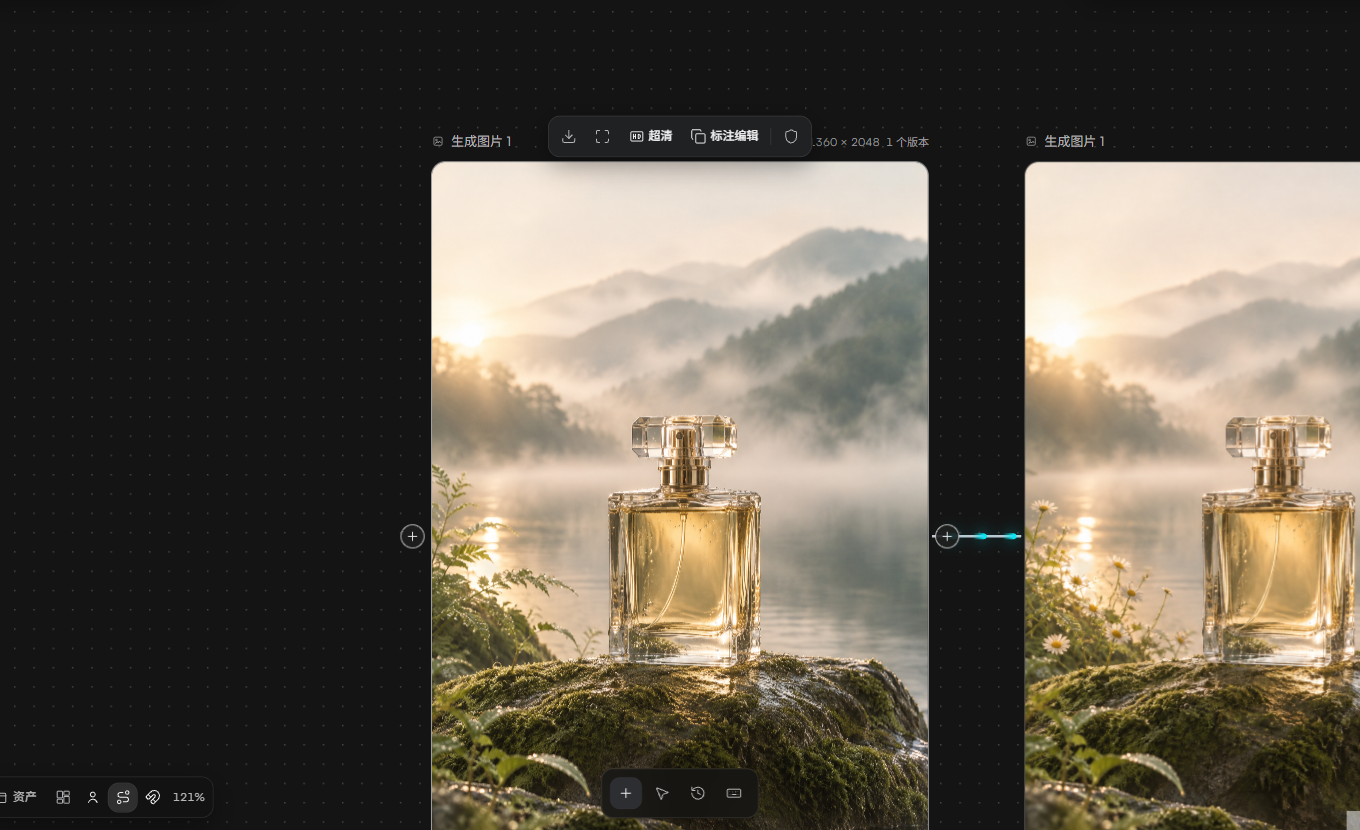
Case 1: Perfume Liquid to Pale Pink (Achieved)
- Entry point: Generation details
- Tested prompt: "把红框内香水瓶里的液体颜色改为淡粉色,瓶身、瓶盖和背景保持不变。" (Change the liquid color inside the perfume bottle in the red box to pale pink; keep the bottle body, cap, and background unchanged.)
- Result: The liquid inside the bottle shifted to pale pink throughout; no red box remained; minor repainting noise appeared outside the box, but no conspicuous unintended edits occurred. The output flowed back into the generation stream and supported continued markup editing.

Case 2: Canvas Fern to White Daisies (Partially Achieved)
- Entry point: Creative canvas image node
- Tested prompt: "把红框内左侧的蕨类植物替换成一束白色小雏菊,其余画面保持不变。" (Replace the fern on the left inside the red box with a bouquet of white daisies; keep the rest of the image unchanged.)
- Result: White daisies appeared inside the box, but the fern was not cleanly removed, resulting in "adding flowers without removing ferns"; the bottle and lake surface remained largely preserved. Because 1K was selected, the larger image was downscaled. On the canvas, a downstream image node was created and connected.

This illustrates that, in this specific test run, "replacement" behaved closer to "adding within the box." If the goal is a clean replacement, the prompt should explicitly state "replace rather than overlay." Switching to higher detail tiers or breaking the process into multi-turn revisions was not comparatively tested in this run, serving only as potential directions for future testing; a single run does not guarantee one-shot success.
Case 3: Sign Text OPEN to SALE (Achieved)
- Entry point: Generation details
- Tested prompt: "把红框内招牌上的英文单词 OPEN 改成 SALE,保持字体风格、颜色、招牌和其余画面不变。" (Change the English word OPEN on the sign inside the red box to SALE; keep the font style, color, sign, and rest of the image unchanged.)
- Result: The English word OPEN on the sign was clearly changed to uppercase SALE, preserving the white serif font style, wooden sign, and warm-toned scene; no red box remained; no obvious object additions/deletions or layout disruptions occurred outside the box, though subtle variations appeared in the wood grain and edge details of the sign.

Boundaries and Applicable Scenarios for Markup Editing
| Scenario | Explanation |
|---|---|
| Local product recoloring, minor material adjustments | Achieved in Case 1; prompts should explicitly specify preserving bottle geometry, labels, and lighting |
| Short in-image text, badge letters | Achieved in Case 3; both original and target text should be enclosed in quotes |
| Bounding-box replacement of plants or small objects | Only partially achieved in Case 2; "addition without removal" can occur; higher detail tiers or multi-turn editing were not tested in this run |
| GIFs / SVGs | Currently cannot be edited with markup |
| Asset library entry point | Markup editing is currently not available from the asset library |
| Requiring pixel-level preservation outside the box | Both official documentation and local tests showed subtle repainting outside the box; markup should not be treated as a pixel-perfect mask lock |
| Selecting 1K to edit an original image larger than 1K | The output will be downscaled according to the selected tier; verify output dimensions prior to submission |
Official Guidance and Community Insights
Official Guidance: Mark the Region, Specify What to Change and What to Keep
OpenAI official blog posts and developer prompt guides frame markup editing around a consistent set of practices:
- Prepare the original image;
- Create a separate transparent PNG markup layer of the identical dimensions (circles, bounding boxes, or arrows are all acceptable);
- Structure the prompt to describe "what to change," "what to change it into," and "what to preserve across the rest of the image";
- Explicitly instruct the model not to leave red circles or boxes in the final result;
- Inspect the entire resulting image after generation, rather than focusing solely inside the bounding box.
Official example intent (derived from the approach in developer documentation, not our tested prompt below): change a striped vase inside a red circle into cobalt blue ceramic, keep the shape, dried flowers, and remainder of the kitchen unchanged, and remove the red circle.
Official guidance also notes: for most regional edits, a lower complexity setting can be attempted first; modify only one thing at a time, then verify whether areas outside the box have drifted.
Community Discussions and Workflow Insights
Between 2026-11-04 and 2026-11-07, among high-relevance public posts, actionable techniques have mostly centered on GIFs and product summaries, while firsthand in-depth write-ups breaking down markup prompts remain rare. The following 5 sources represent verified posts that provide distinct informational value:
- @OpenAI's post introducing Images 2.6 / Flare & Sunburst and image markup (approx. 2026-11-04T23:35 UTC): Announced Images 2.6, detailing Flare / Sunburst on the API, image markup, and SVG export.
- OpenAI Official Blog Post "Introducing Images 2.6" (2026-11-04): Faster generation, GIFs, reference images, API markup editing, and complexity control.
- @Krouxzz: Steps and sample prompts for looping GIFs in ChatGPT (2026-11-05): Community workflow demonstrating GIF generation from prompts or reference images.
- @BeyondDraft: Using markup to pinpoint edit locations (2026-11-07): Framed the arrival of image markup on the API as a workflow shift—for design and staging pipelines, markup alters interaction patterns more substantially than speed improvements alone.
- @hungryturbo: Chinese summary of Images 2.6 (2026-11-05): Emphasized that image markup accurately specifies regional edit zones, distinguishing Flare's generation speed from Sunburst's multi-turn editing consistency (paraphrasing official claims, not independent benchmarks).
Additional note: OpenAI official GIF prompt examples commonly employ "closed-loop motion + fixed camera angle" phrasing; community posts also frequently suggest "exploring drafts with Flare first, then refining with Sunburst." These are public methodology cues and should not be taken as benchmark conclusions on the Yihook platform.
In practical workflows combining community discussions:
- The GIF and reference image workflows widely discussed in the community are well-suited for "generating motion graphics from scratch or maintaining character consistency"; markup editing addresses a distinct need: taking an already satisfactory static image and adjusting only a specific portion.
- Both official materials and community summaries emphasize "pointing to the location"; across our three local test runs, recoloring and text edits succeeded, while replacement in Case 2 required more explicit instructions to "replace and remove the original object."
- GIFs cannot currently undergo red-box markup editing directly; if both local modifications and motion are required, static image modification and GIF generation must be treated as separate steps (chaining "markup edit first, then generate GIF" was not tested as a single sequence in this run).
Using Markup Editing in Yihook
- GPT Image 2.6 is supported across generation and canvas workflows.
- Markup editing allows specifying regional edits with red bounding boxes; the test environment reflects local build verification.
- Static images in generation details and image nodes on the canvas are the entry points verified in this run; markup editing is currently not open from the asset library.
- For a more complete introduction to the models, see the existing article: GPT Image 2.6 Is Live on Yihook. For motion graphics workflows, see: AI GIF Generator Guide. For vector graphics, see: AI SVG Generator Guide.
Frequently Asked Questions
Is markup editing the same as image markup described by OpenAI?
They refer to the same capability: using visual markup to indicate where to edit, combined with text prompts describing the editing intent. OpenAI documented this as a ChatGPT and API capability in the Images 2.6 release; on Yihook, it is presented as "markup editing" within the product.
What is the difference between markup editing and mask-based inpainting?
Both approaches aim to modify only a localized region. Markup editing uses a bounding box to indicate the edit location and prompts to explain what to change and what to preserve. It functions as location guidance rather than a pixel-level hard mask, and our test runs observed subtle repainting outside the box as well. If a workflow strictly requires pixel-level freezing of specific areas, compositing in design tools is recommended.
Why does replacement sometimes behave like adding rather than replacing?
This occurred in Case 2. Prompts can be phrased more explicitly, such as "replace and remove the original object; do not overlay," while targeting only one modification per run. Increasing the detail tier or splitting the process into two turns ("remove first, then add") are common follow-up approaches, but they were not comparatively tested in this run.
Can GIFs and SVGs be edited with markup?
Not currently. Markup editing is designed for static raster images.

Why are there still slight changes outside the bounding box?
Markup acts as a guiding signal rather than a pixel-level hard mask guarantee. Official documentation explicitly advises checking the entire output, and our local tests similarly observed minor repainting. If strict pixel-level freezing of an area is required, it generally needs to be composited in design tools rather than relying solely on prompting.
Summary
Markup editing shifts the question of "where to edit" from textual guessing into a visible spatial cue. Combining OpenAI's official practices with community discussions, the most reliable workflow is: small scope, single target, explicit preservation terms, and acceptance that slight repainting may occur outside the box. In our three local test runs, recoloring and letter modifications succeeded, while object replacement was only partially achieved—an outcome that reflects realistic production workflows better than generalized claims of "greater precision."
Ready to try it?
Put this playbook to workon your next piece.
Every prompt and workflow above runs as-is on the Yihook canvas. Start from a product shot or an idea, make the visuals and videos, and keep what works for your team.